Orientation (Portrait / Landscape)
The Orientation button allows you to switch the schedule table between portrait and landscape layout.
One click sets the table to portrait mode, and the next click switches it to landscape, providing more horizontal space for wider schedules or printing.
This feature is available only on desktop devices. On mobile devices, orientation switching is disabled because the table uses a column-based layout that does not support portrait and landscape modes.
Table Structure (Add / Remove Rows & Columns)
The Table Structure tools let you adjust the layout of the schedule table by adding or removing rows and columns.
You can use Add Column or Remove Column to change the number of days or sections, and Add Row or Remove Row to modify the time slots or entries.
These actions affect only the structure of the table. All changes are applied instantly, giving you full control over the table size and layout.
Colors & Background
The Colors & Background tools allow you to customize the visual appearance of the schedule table.
You can change the text color, set a cell color, or apply a table background color that affects the entire table.
The Apply Color to Background option adds a transparent color overlay, which works especially well when a background image is used, improving contrast and readability.
With Add Background Image, you can place your favorite image behind the table – whether it’s a landscape, an inspirational figure, or something personal.
The Reset Background button removes the background image, while Reset Table Color clears all applied colors, including cell coloring, table background, and any transparent overlays.
Table Borders
The Table Borders options let you control how the table lines look.
With Line Thickness, you can adjust the thickness of the table borders to make the grid more subtle or more visible.
The Line Color option allows you to change the color of the borders, helping the table better match your overall design or improve readability.
Text Style
The Text Style panel allows you to control how text appears inside the table cells.
You can apply bold, italic, or underline formatting, adjust text alignment (left, center, right, or justified), choose a font family, and change the font size.
All text styling options are grouped in one panel, making it easy to format the table for clarity, emphasis, or visual consistency.
Save as PDF
The Save as PDF feature allows you to export the schedule table as a PDF file, ready for printing or sharing.
This option is available only on desktop devices, where the table is displayed in its full layout. On mobile devices, the PDF export is disabled, as the table uses a column-based view that is not suitable for accurate PDF generation.

Clear Table
The Clear Table option removes all content and styling from the table.
This action clears everything at once, including text, colors, fonts, backgrounds, and icons. Before using it, make sure you really want to start over, as all current changes and customizations will be permanently removed.

Export JSON (Automatic Save)
The table saves your work automatically, so you can create your schedule step by step without worrying about losing anything.
You can close the page and come back later – your table will still be there, exactly as you left it. No account, no buttons to click, everything happens on its own in the background.

Import JSON
The Import option lets you load a previously saved file and continue working on your table.
You simply select the file, and the entire table is restored – including text, colors, layout, and all other settings. It’s an easy way to pick up your work exactly where you left off, even on another computer.
The file name may include JSON, but there’s nothing technical you need to understand. It’s just a safe file that stores your table.

Dark Mode / Light Mode
Dark Mode / Light Mode lets you switch between a dark and a light visual style for the table and the overall layout.
The selected mode affects how the table looks on screen and how it appears when printed, allowing you to choose the version that is more comfortable to work with or better suited for printing.

Share
The Share feature makes it easy to share Planzeo with others.
On desktop, a single click opens a sharing window with available platforms and options. On mobile devices, press and hold the Share icon to open the sharing panel, while a single tap opens the system sharing options on Android.
If you find Planzeo helpful, feel free to share it with friends, students, or colleagues – it really helps others discover the tool

Mark Cells
The Mark Cells feature allows you to highlight important days, events, or notes using icons.
First, select the cell you want to mark. Then click the Mark Cells icon and choose the symbol that best represents the event or importance.
This feature works the same way on desktop and mobile devices, so you can mark cells easily on any screen.
Icons can be removed at any time using Remove Marks in the panel, or by using Clear Data, which clears everything from the table.
Add Time
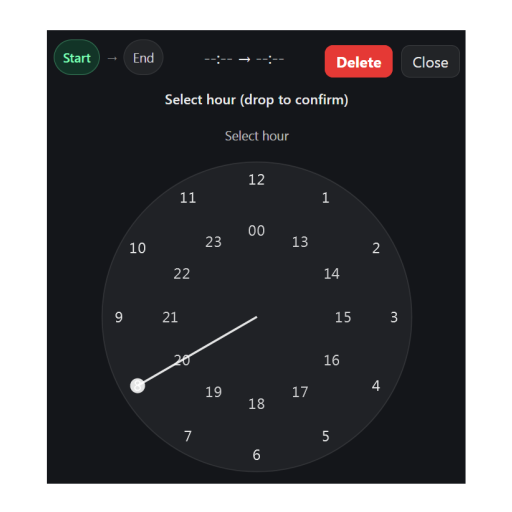
The Add Time feature lets you set hours in a quick and intuitive way, both on desktop and mobile devices.
To add or change a time, simply double-click the cell in the Time column. A clock will appear, allowing you to set the exact hour and minutes.
On desktop, you adjust the time by dragging the clock hands with your mouse. On mobile devices, it works the same way – you just use your finger instead of a mouse.
If you make a mistake, you can easily remove the time using the Delete button in the top-right corner of the clock.
Remove Time (Multiple Cells)
There is also an alternative way to remove times from the Time column on desktop devices.
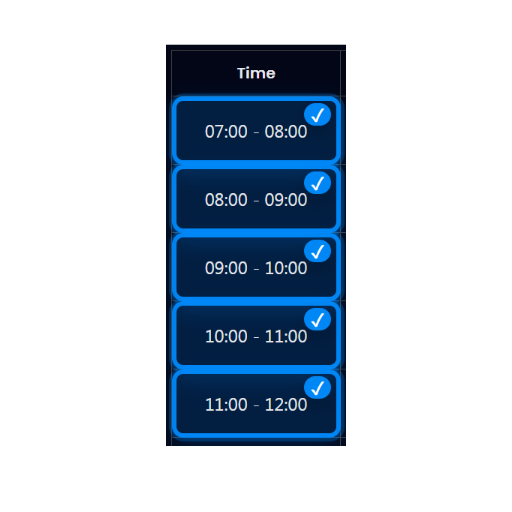
You can delete a single time or multiple times at once. To do this, hold down the Ctrl key (left or right – whichever you prefer) and select the time cells you want to clear.
Once selected, press Backspace or Delete on your keyboard to remove the times instantly. This method is especially useful when you want to quickly clean or adjust multiple time entries at once.